Merged Text Files
Umango can optionally create a merged text file in addition to the selected document output file. This option is useful when a destination system requires document metadata, index values, zone values, barcodes, OCR results, or other job data to be exported in a structured text format.
To enable this feature, select the option to Export a merged text file:
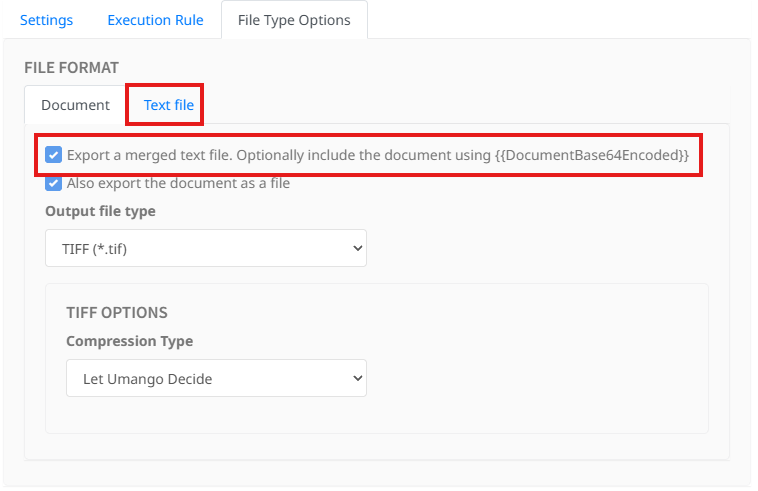
Selecting the Merged Text File Option
When this option is enabled, the Text file tab becomes available. The Text file tab contains the settings used to build the merged text output.
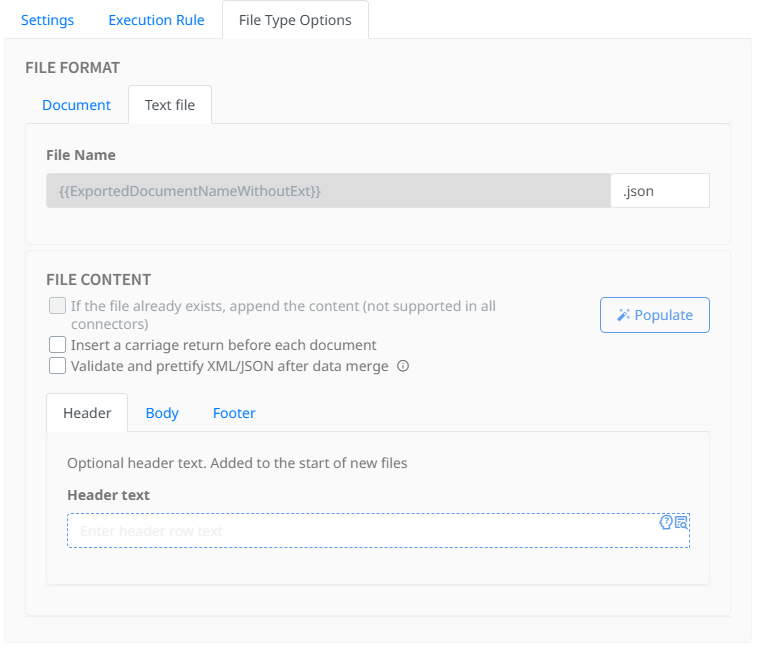
Merged Text File Configuration
The merged text file can be used to create formats such as JSON, XML, CSV, or plain text. The content of the file is created from a template that contains Umango merge fields. When the job runs, Umango replaces the merge fields with the values captured or generated during processing.
Text File Options
The Text file tab allows you to define the structure and content of the merged text file.
File Name
The file name set in the Settings tab will be the name used for the exported text file. Merge fields can be used in the file name.
The file extension determines the type of text file being created. For example, use .json for JSON output, .xml for XML output, or .csv for CSV output.
The file extension is also used by the Populate option to determine the type of template that should be automatically generated.
File Content
The File Content section controls how the merged text file is created.
If the file already exists, append the content
Select this option to add the generated content to an existing file rather than replacing it. This option is not supported by all connectors.
Insert a carriage return before each document
Select this option to insert a new line before the content for each document. This can be useful when appending multiple records to a single text file, such as when creating line-based CSV or text output.
Validate and prettify XML/JSON after data merge
Select this option to have Umango validate the merged XML or JSON content after the merge fields have been replaced. When possible, Umango will also format the output to make it easier to read.
This option should only be used when the text template contains valid XML or JSON after the merge has been completed. When enabled, if the json or xml does not validate after the data merge is complete, the export will fail and the batch will be deferred.
Header, Body, and Footer
The text template is divided into three sections:
- Header - optional text added to the start of a new file.
- Body - the main template content generated for each document.
- Footer - optional text added to the end of a new file.
Use these sections to build the required text structure. For example, a JSON file may require opening content in the header, one or more document records in the body, and closing content in the footer.
The Body section is normally where document-specific merge fields are added. These may include index fields, zones, barcode values, OCR values, document properties, or other available Umango merge fields.
Using Merge Fields
Merge fields are inserted into the template using the standard Umango merge field format. When the job is processed, each merge field is replaced with the corresponding value from the document, job, or batch.
For example, a JSON body template may contain values such as:
{
"documentName": "{{ExportedDocumentNameWithoutExt}}",
"invoiceNumber": "{{InvoiceNumber}}",
"supplierName": "{{SupplierName}}"
}
The available merge fields depend on the job configuration, including the index fields, zones, barcodes, and other data captured by the job.
When exporting to json or xml, it is recommended you encode the respective merged data to ensure the resulting file is produced with valid formatting. These encoders are:
{{JsonEncode({{InvoiceNumber}})}}
{{HtmlEncode({{InvoiceNumber}})}}
Including the Document as Base64
The merged text file can optionally include the exported document as a Base64 encoded value by using the following merge field:
{{DocumentBase64Encoded}}
This is useful when sending both the document metadata and the document content to a destination system using a single text-based file, such as a JSON or XML payload.
Including the document as Base64 can significantly increase the size of the text file.
Populate
The Populate button can automatically build a text template using the merge fields available from the current job configuration.
Umango uses the selected file extension to determine the type of template to create. For example, if the text file extension is .json, Umango will create a JSON-style template containing the available merge fields.
An example of an automatically populated json body which uses iterations and correctly closes off an array of values:
{"document": {
"sourceFileName": "<<JsonEncode(<<SourceFileName>>)>>",
"aPIUploadData": {
<<Iterate(<<APIUpload.Data.Count>>)>>
"<<JsonEncode(<<APIUpload.Data.Name[*]>>)>>": "<<JsonEncode(<<APIUpload.Data.Value[*]>>)>>"<<If(['<<Iteration>>'='<<APIUpload.Data.Count>>'],[],[,])>>
<<IterateEnd>>
}
}
}
This provides a quick starting point for building the merged text file. After the template has been populated, it can be edited to match the exact format required by the destination system. This is particularly helpful when building output that will contain items or table rows that will require row iterations.
Example Uses
- Create a JSON file containing accounts payable invoice document data ready for import into an accounting system.
- Create a CSV file containing one row of metadata for each exported document.
- Create an XML file containing captured values and document properties.
- Create a JSON or XML payload that includes the exported document using Base64 encoding.
Important Notes
- The merged text file is optional and can be created alongside the selected document output file.
- The Text file tab is only shown when the merged text file option is enabled.
- The available merge fields depend on the job configuration.
- When creating JSON or XML output, ensure that the final merged result is valid for the selected format.
- If the file extension you require is not included in the drop down option list, you can just type it in.
- Appending to an existing file is not supported by all connectors.